How Navattic Uses Demos for Sales

At Navattic, our SEs and AEs don’t have the time to do live demos for every single prospect.
After all, some people are just browsing, and don’t want to talk to sales until they’ve confirmed our platform is the right fit for their use case.
To manage everyone’s time better, we use Navattic.
Navattic’s automated demos let buyers explore the product on their own and qualify themselves in or out.
Meanwhile, our presales and sales teams can focus on strategic demos. And if a prospect ends up being a high-quality lead, demo engagement data gives reps insight into what they’re interested in. Win-win.
We’re not the only ones who find this process more effective. Of the 40k+ demos created on Navattic in 2025, deals including an automated demo have a 6% higher win rate and a 19-day faster sales cycle.
Here’s how we structure our demos to maximize efficiency and close more deals (with data to back it up).
1. We personalize our demos
As consumers, we all know personalization works.
It’s why we open emails with our name in the subject line, why we go to the coffee shop where the barista knows our order, why our FYP keeps us scrolling.
Not surprisingly, B2B buyers react the same way.
In our State of Demo Automation research, we found that edited demos have almost double the view rate (29% vs. 15%).
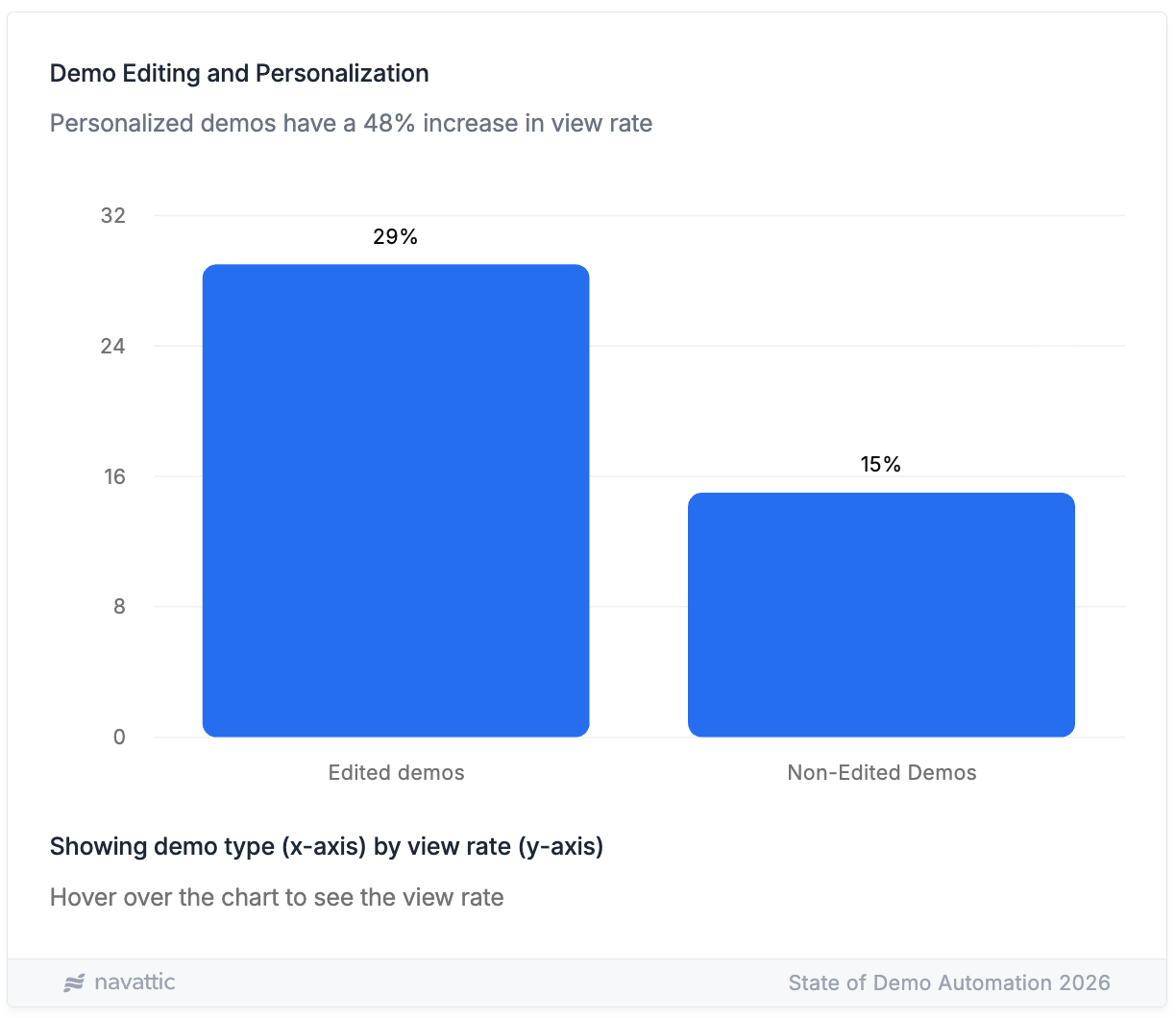
Tailoring our demos to prospects gives us the best chance of catching their attention. Here’s how we do it:
By adding variables
When a prospect sees their name, their company’s name, and their company’s logo, it feels like we took the time to build something specific to them.
Plus, it gives them a sense of what Navattic would look like if they logged in themselves.
To add variables to our demos, we:
- Click into the flow we want to personalize.
- Click the Edit capture button.
- Click on the text we want to update.
- Head to the Magic Editors dropdown → Personalization.
- Select a custom property to pull from, for example, “Company name.”
Usually, we add fallback text in case we can’t identify company information because of ad blockers or an incognito browser.
And if we want to update the company name throughout the demo, we can check the “Replace all instances” checkbox.
We also add variables to dialog boxes, especially welcome messages, to make demos feel more conversational:
- Click into the dialog box.
- Start typing “{{“ and the Personalization property box will appear.
- Select the proper variable.
- Enter fallback text.
- Click Insert.
These variables update dynamically, so we can send the same demo to multiple prospects. Navattic will automatically pull in the appropriate variables (even if they share that demo with someone else on their team).
By using interest demos
Another way we tailor demos is by letting people choose what they want to see.
Giving people that autonomy ensures we’re not wasting their time: they are guaranteed a taste of exactly what appeals to them.
It’s why interest demos are so common. In fact, they made up a majority (84%) of all demos created on Navattic last year.
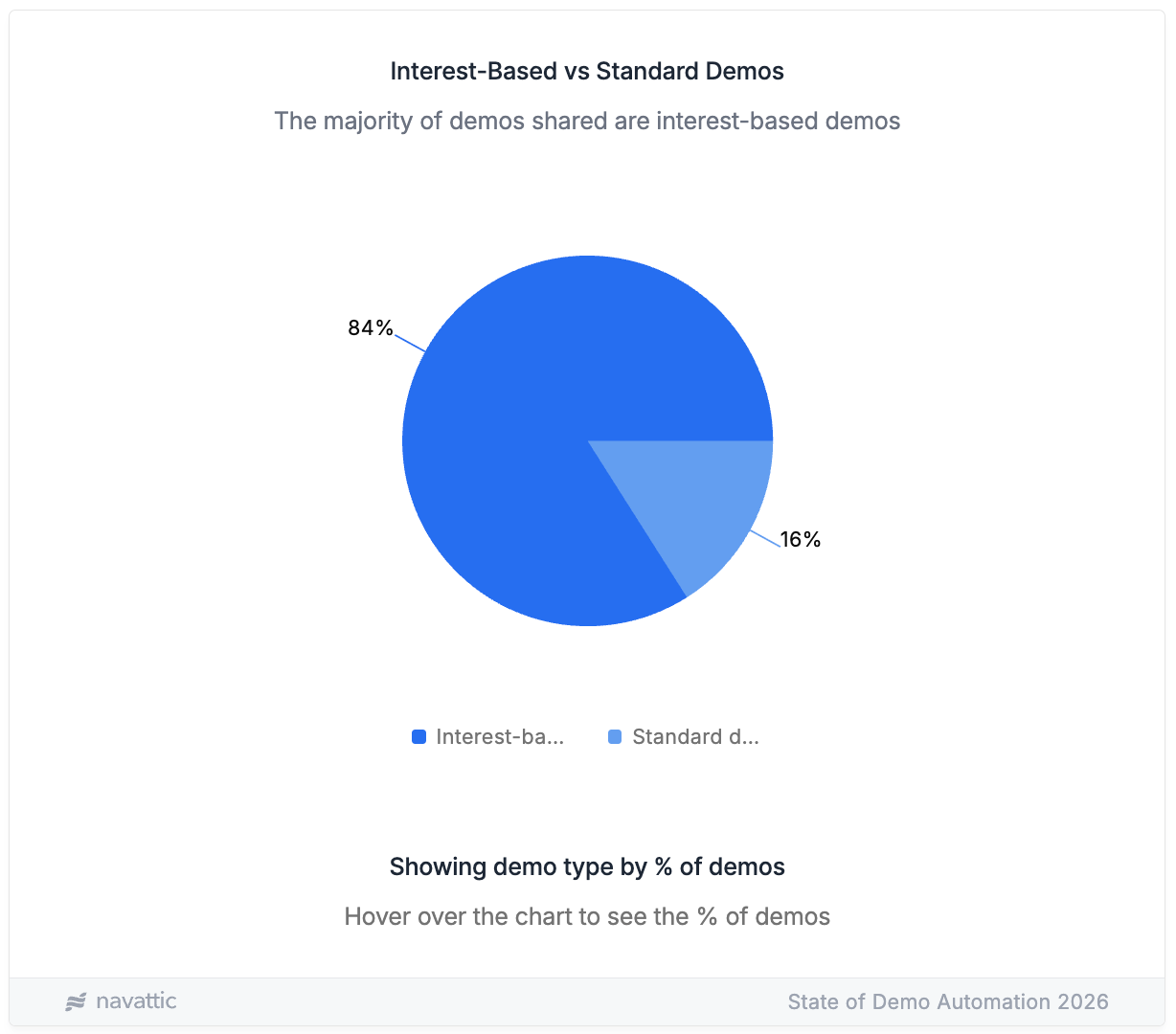
We add an interest form after we’ve built out several flows that highlight specific use cases, product lines, or features.
Here’s what the interest form looks like in our Launchpad demo:
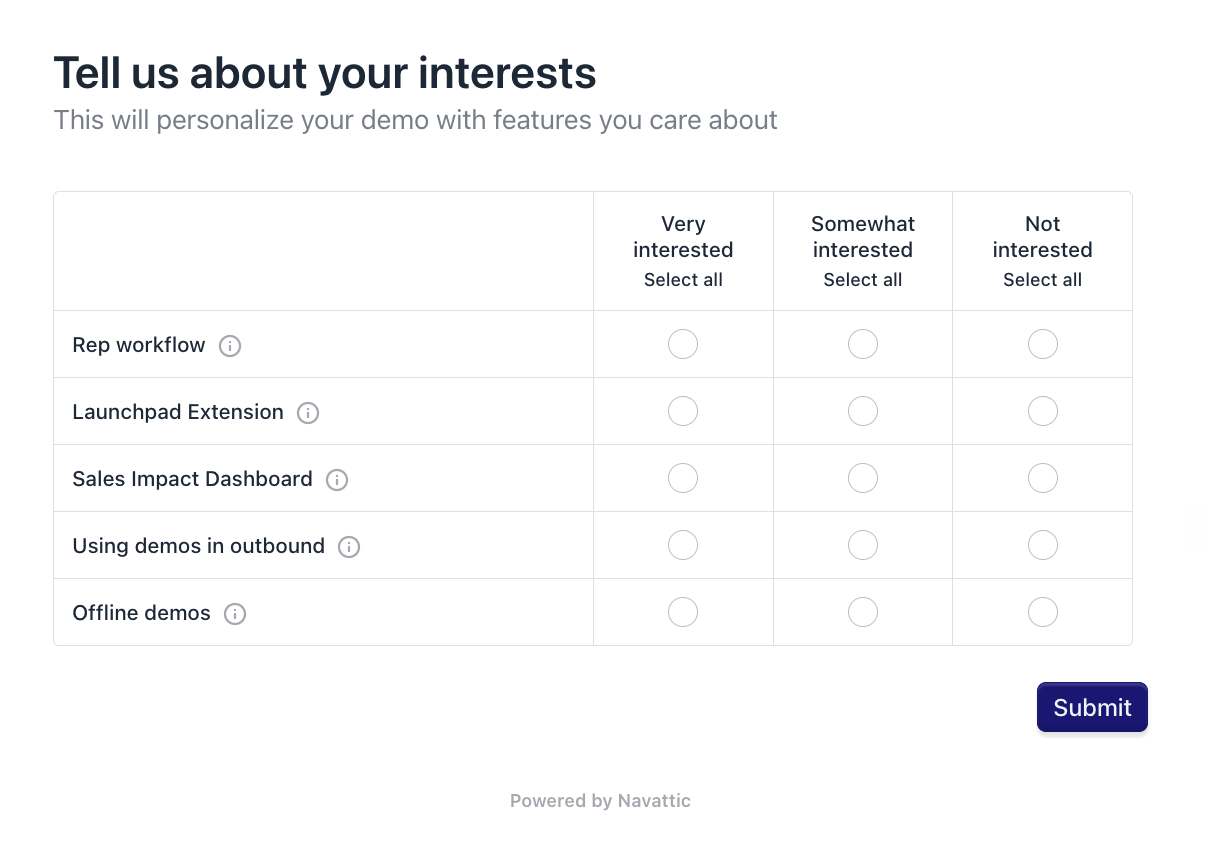
To reproduce it yourself:
- Go to the Product Demo page in Launchpad, select + Create new, then choose Generating interest demo and select Interest areas as your form type.
- Create flows for each Interest area that you want prospects to be able to explore. Each Interest should have one or more flows assigned to it (5-15 steps per flow).
By using checklists
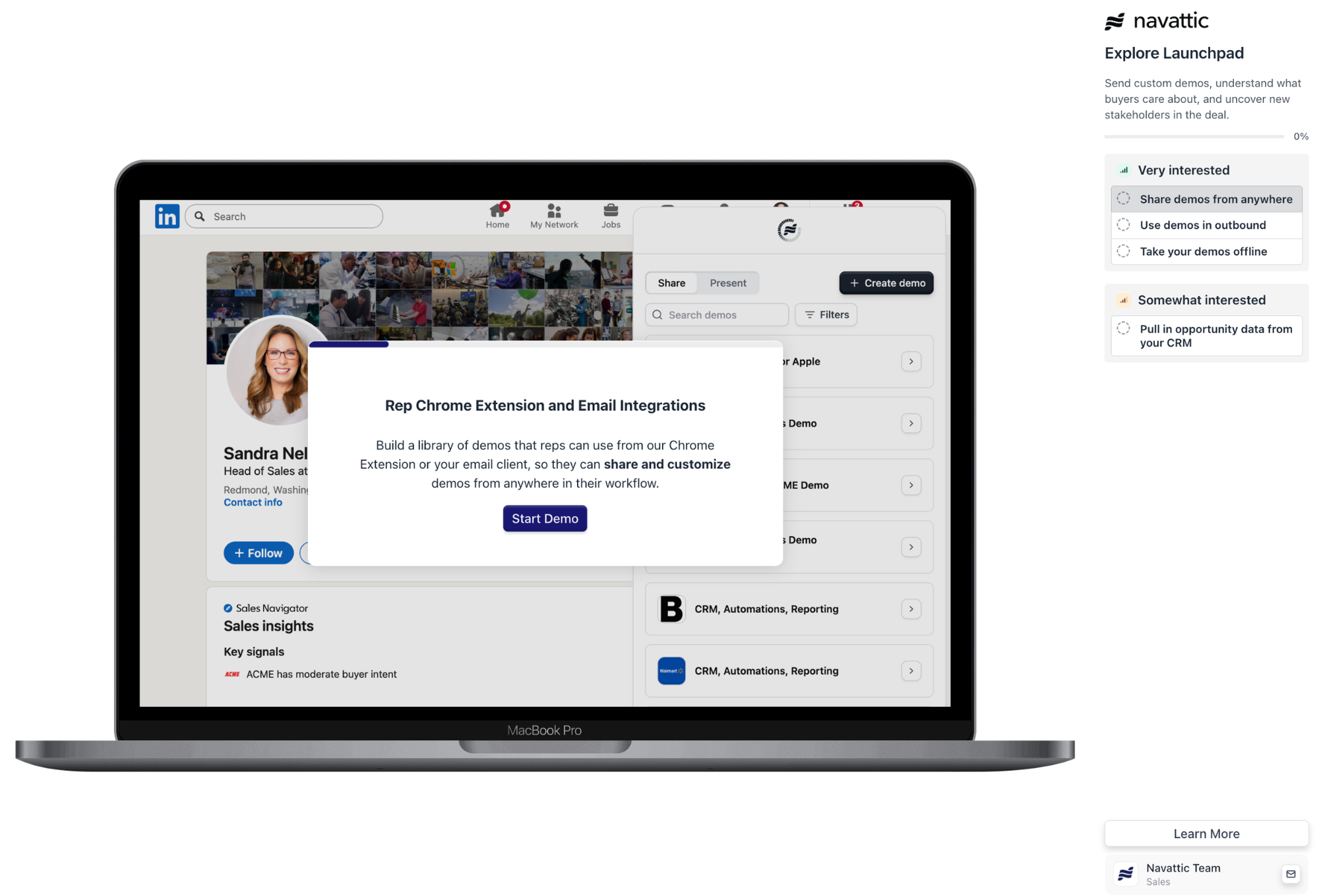
In addition to our interest form, we typically add a checklist so prospects can navigate between different flows more easily.
For instance, maybe they thought they were interested in the rep workflow, but really they want to see how to use demos for outbound.
Or, they got the gist of the Launchpad extension pretty quickly and want to move on to another topic.
Adding a checklist only takes a few steps. From the Add Element dropdown:
- Select “Checklist.” (Navattic already populates it with the existing flows)
- Add a Title.
- Rename the interest flow to something like “Choose your interests.”
When a prospect selects their interests, those interests will automatically pop up in the checklist, like this:
2. We strategically share our demos
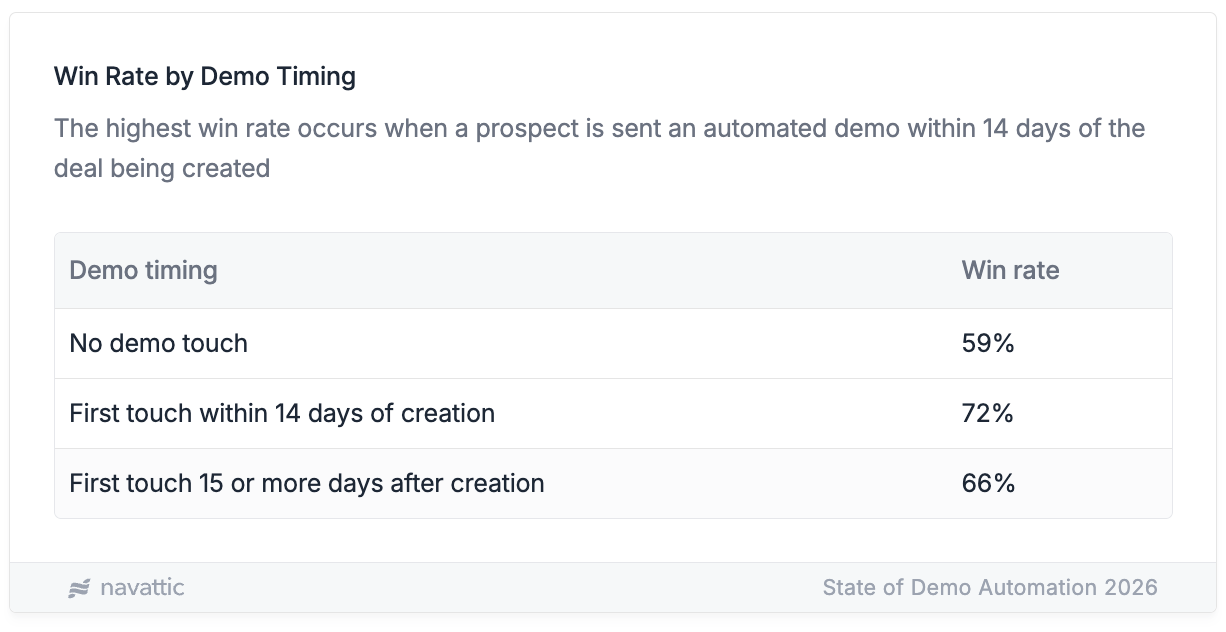
Our State of Demo Automation report showed that win rates are highest when a prospect gets an automated demo within 14 days of a deal being created.
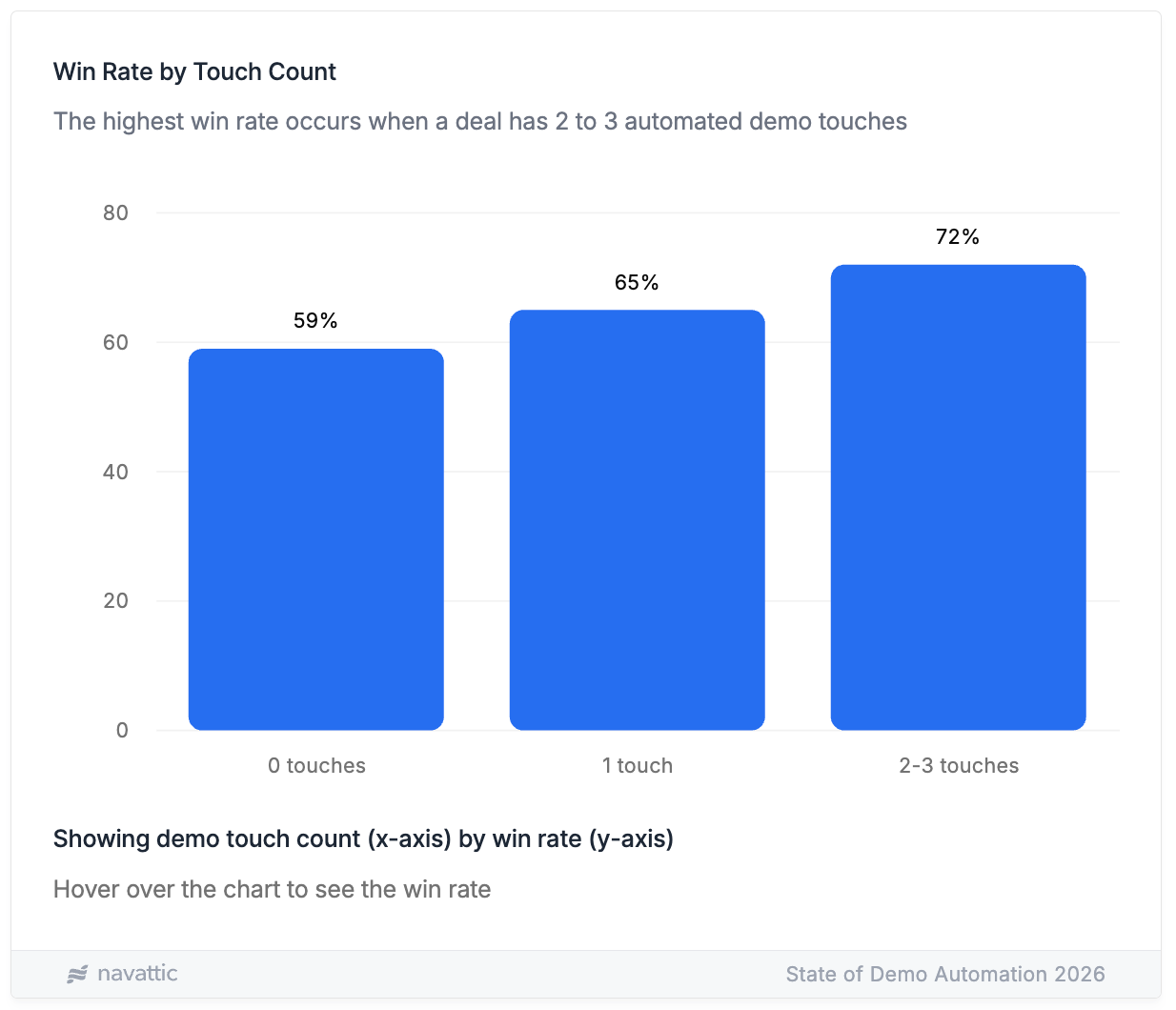
Sending 2-3 automated demo touchpoints in a sales cycle can also get win rates to 72%.
With that in mind, we try to be intentional about when and how we send over demo content.
Launchpad takes some of the pressure off of our sellers by letting them handpick what they want to send and when.
First, our SEs create several stock demos showing off particular use cases or relevant features for specific personas.
Then, AEs can pull one of them up straight from the Launchpad Chrome extension and:
- Decide whether they want to send that demo to one person or a whole team
- Request specific prospect information (i.e., email address) at the start of the demo
- Add in a custom intro video
If they want, reps can even mix and match different flows SEs have created to build their own custom demo.
When they’re ready to send, Navattic auto-populates the prospect’s company logo, along with any other personalization variables, and syncs engagement data directly to the CRM.
Reps see which steps prospects get through and where they spent the most time, helping them decide what to showcase in a live demo.
Note: If an SE updates a stock demo, it automatically flows through to Launchpad, so reps are always sending the latest version to potential customers.
3. We automate demo builds
Navattic’s MCP has empowered our reps to build, personalize, and send demos even faster.
Today, they just pull up Claude and type something like:
“I have a call next week with steve.jobs@nike.com. He heads up solutions engineering at that org.
Build me a demo with a few flows on how to quickly spin up new demos, and how reps can see real-time engagement analytics.”
In a few minutes, Claude will share a proposed interest-level demo with reasoning behind why it chose each flow:
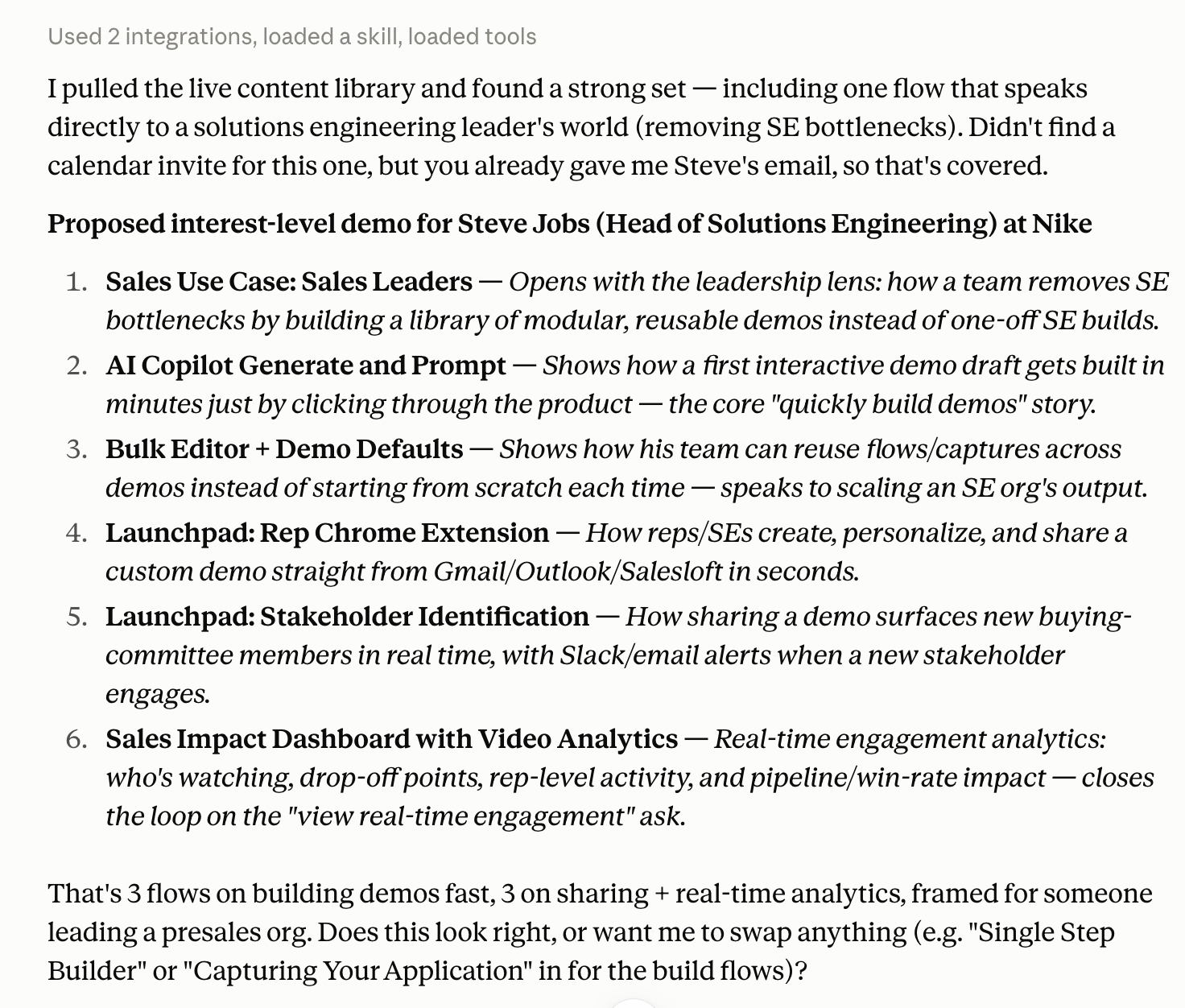
From there, a rep can ask to change that proposed structure with a prompt like:
“I don’t think flow 4 belongs in this demo, and I think we should switch the order of flows 5 and 6.”
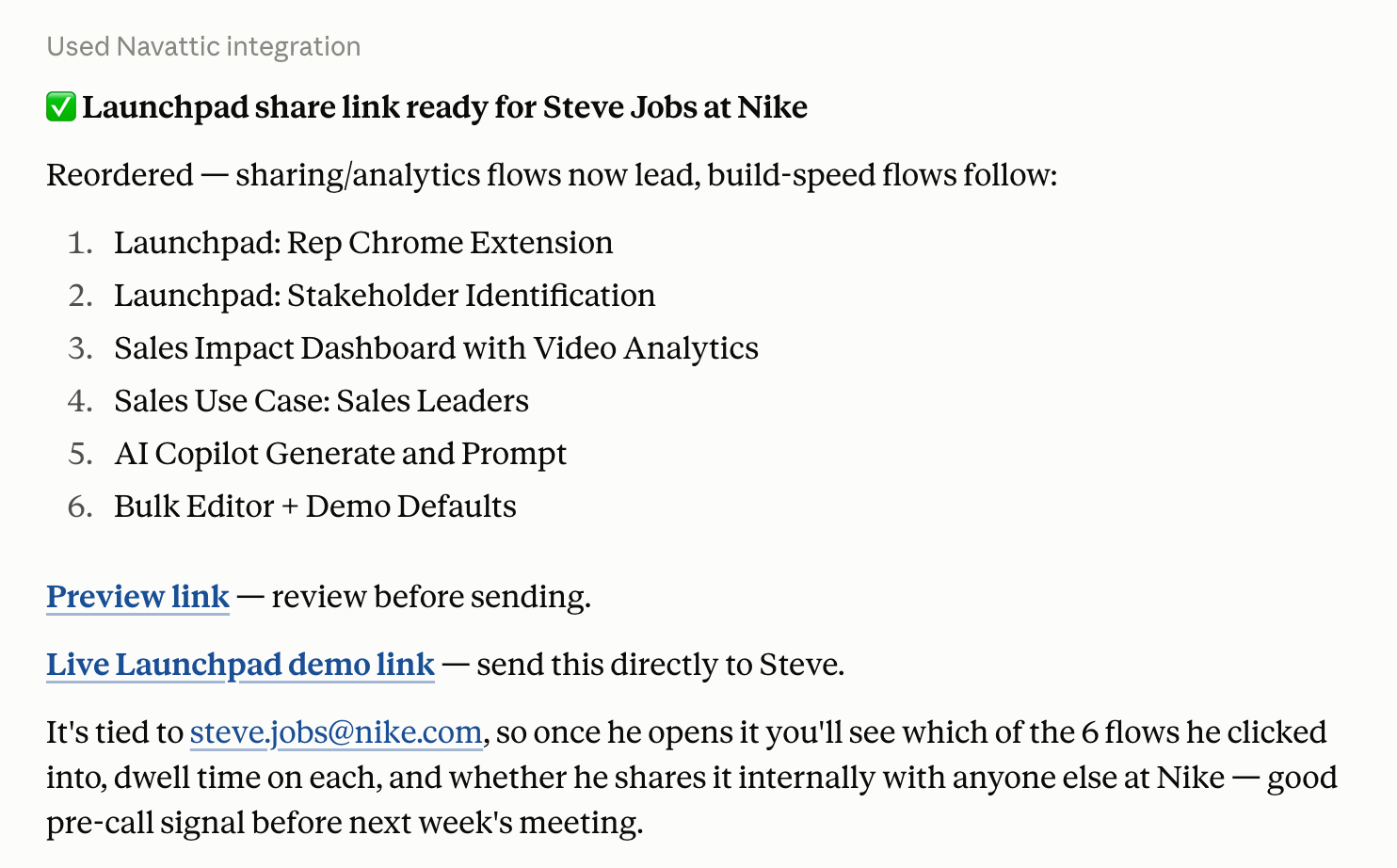
Claude then produces:
- A preview link reps can use to double-check that the demo looks good.
- A live link that they can copy/paste into an email, outbound campaign, or LinkedIn DM fully customized to the prospect.
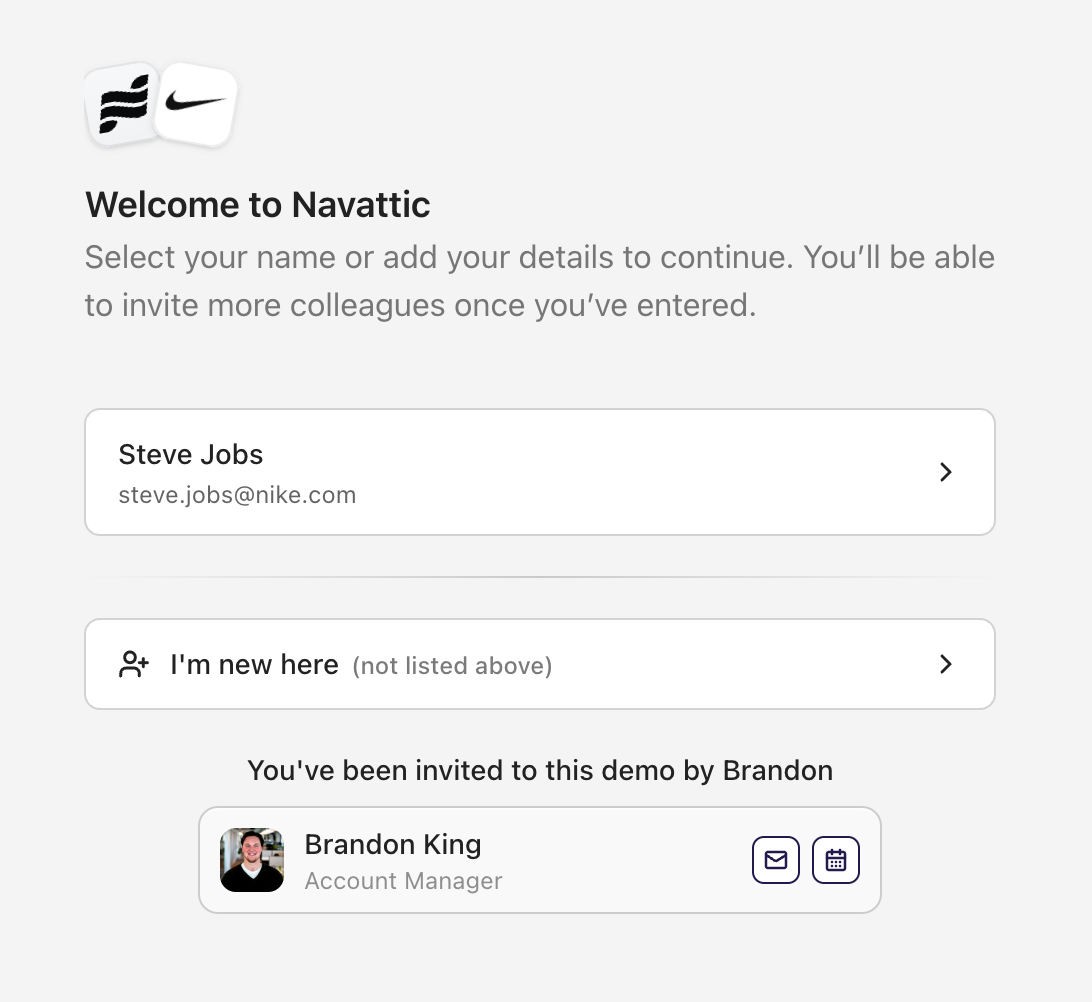
Claude will also follow each rep’s defaults. If they always want to add an intro video, Claude will add it for them automatically.
Note: Navattic’s MCP server works with Claude Desktop, Cursor, VS Code Copilot, Windsurf, ChatGPT, and Codex.
Want to see how much time you could save with interactive demos?
Try building one for free.
Turn demos into deals.
Build interactive product demos that engage buyers and close deals faster.