Four Ways to Use Navattic’s Capture Editor

Captures lay the foundation of an interactive demo, showing your product’s appearance, how it works – even how it scrolls.
But you may not always want to show users exactly how your application looks.
Your sandbox environment may have sensitive data in it that you need to obfuscate. Or perhaps removing certain elements, like pop-ups, could make your demo feel less crowded. In some cases, you may want to hide certain features from competitors.
With Navattic’s prompt-based editing in Copilot, you can personalize a demo, update your UI, update tables and charts – clean up any part of your environment – without the help of engineering, design, or IT.
Keep reading to learn more about what the Editor is, its edge over other screenshot tools, and how to make capture edits faster.
What is Navattic’s Capture Editor?
Navattic’s Capture Editor is a browser-based editing environment that lets you annotate, blur, crop, and customize every step of your interactive demo as you click through your product: no design tools or coding required.
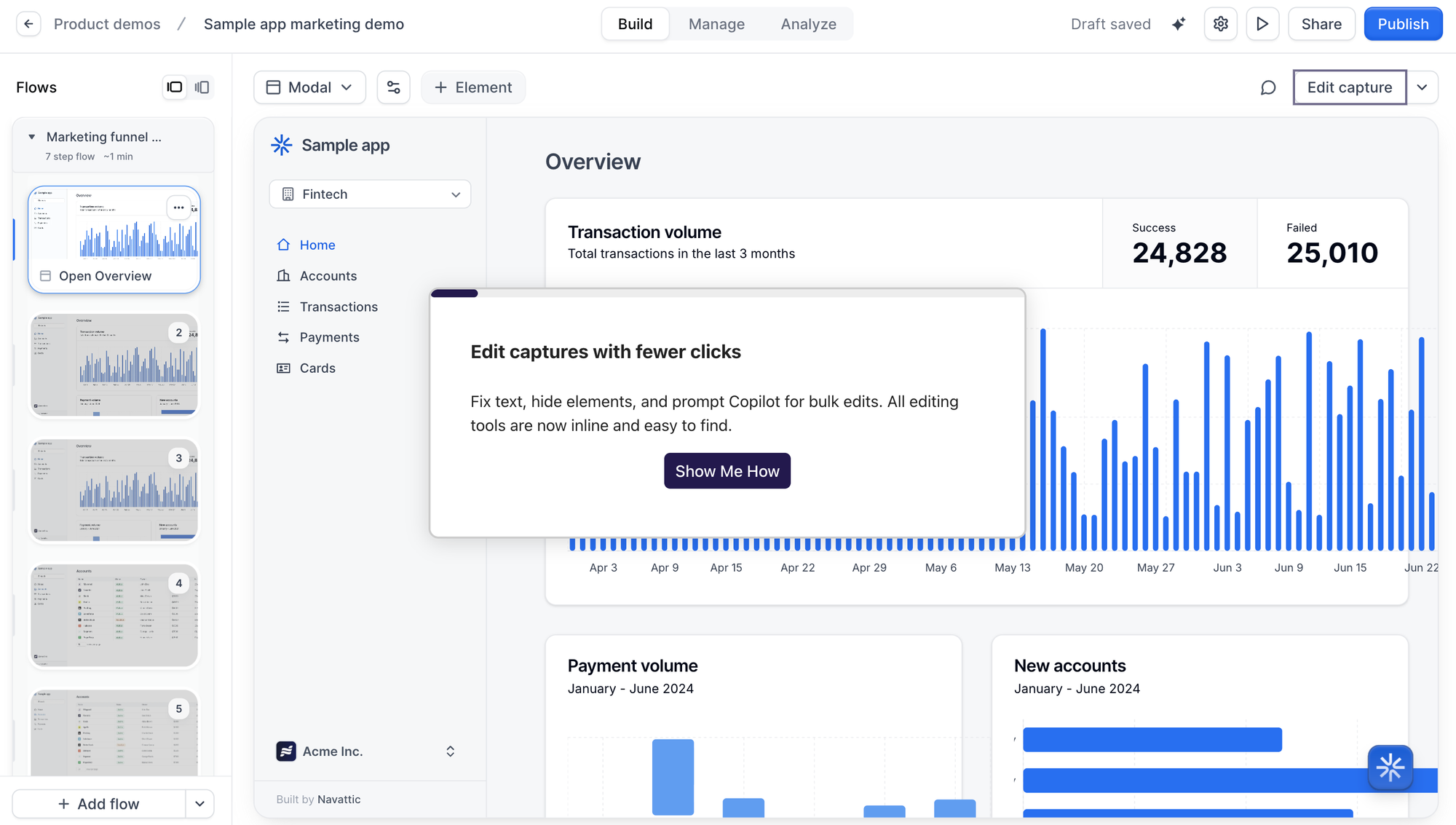
Click on any element in your capture, and the Inline Capture Editor toolbar will appear.
There, you can resize and format text, hide, blur, or duplicate that element, or make other advanced edits.
Or, you can use Copilot, our AI assistant, to make any changes you want. Describe the adjustments you want to make to a specific element:
- Rewrite text
- Blur or hide specific elements
- Regenerate images
- Update color or font
- Clean up messy data
And Copilot will apply them across the whole capture.
How Capture Tools Differ from Screenshot Tools
Screenshots are static, one-size-fits-all visuals. You can modify them, but only if you have good Photoshop skills or a designer on staff.
Even then, users won’t feel like they’re actually using your product – they’ll feel like they’re clicking through a series of images.
Capture tools (like Navattic’s) allow for dynamic interactivity.
By guiding users through your product step by step, you can educate and engage them at the same time. Users are invited to click buttons, input text, and read tooltips about each feature, which makes the product feel more real and helps the content actually sink in.
Capture tools also save you time – you can copy, edit, and reuse them across demos, speeding up the creation (and update) process.
If you need to, you can always download your captures as screenshots.
4 Best Ways to Use the Navattic Capture Editor
To help you make the most of the Navattic Capture Editor, we’ve put together a preliminary list to get you started:
1. Quickly Personalize a Demo for a Specific Prospect
Today’s buyers expect a certain level of personalization. They want to know that your product has worked for other people in the same role, in the same industry, and at the same company size before.
Branding their interactive demo can give them more confidence and help them better visualize what it would be like for them to use your product. Plus, it’s a good way to stand out from the crowd.
With Copilot, you can insert personalization variables, such as name, role, and company logo directly into your captures with a simple prompt.
Alexander Yant at Slope points out: “Prospects really enjoy the personalized aspects of our demos, it can help relax any tensions and make it less seem like a rigid sales experience and more of just kind of a fun conversation.”
2. Update UI Without Rebuilding the Whole Demo
If you’ve worked at a SaaS company before, you know that UI and UX changes happen often.
And in a world without interactive demo software, those changes mean redoing all your static product screenshots and videos.
Our customer, Traackr, highlights, “Overall, interactive demos are a better experience for us and our audience compared to video content. Navattic demos are easier to create, update, and click through for end users.”
With Navattic’s Capture Editor, you can use Bulk Edit to update text, images, and styling once and then apply those changes across all captures in your collection.
This is particularly useful when personalizing a set of demos to a particular vertical or buyer profile.
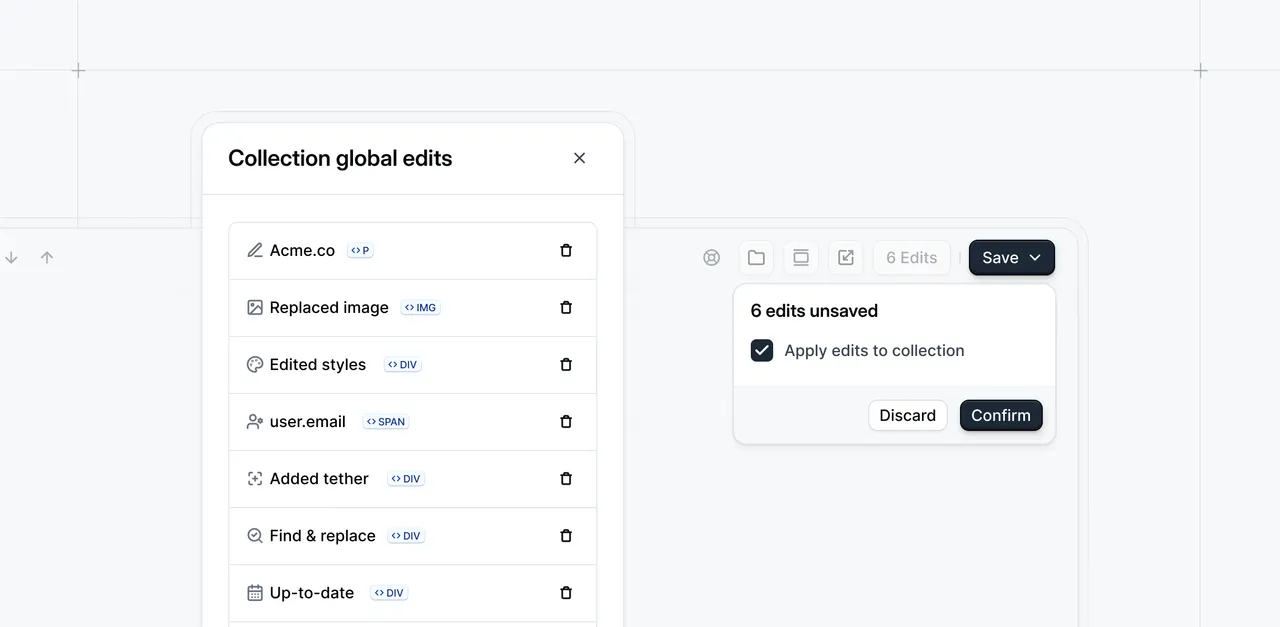
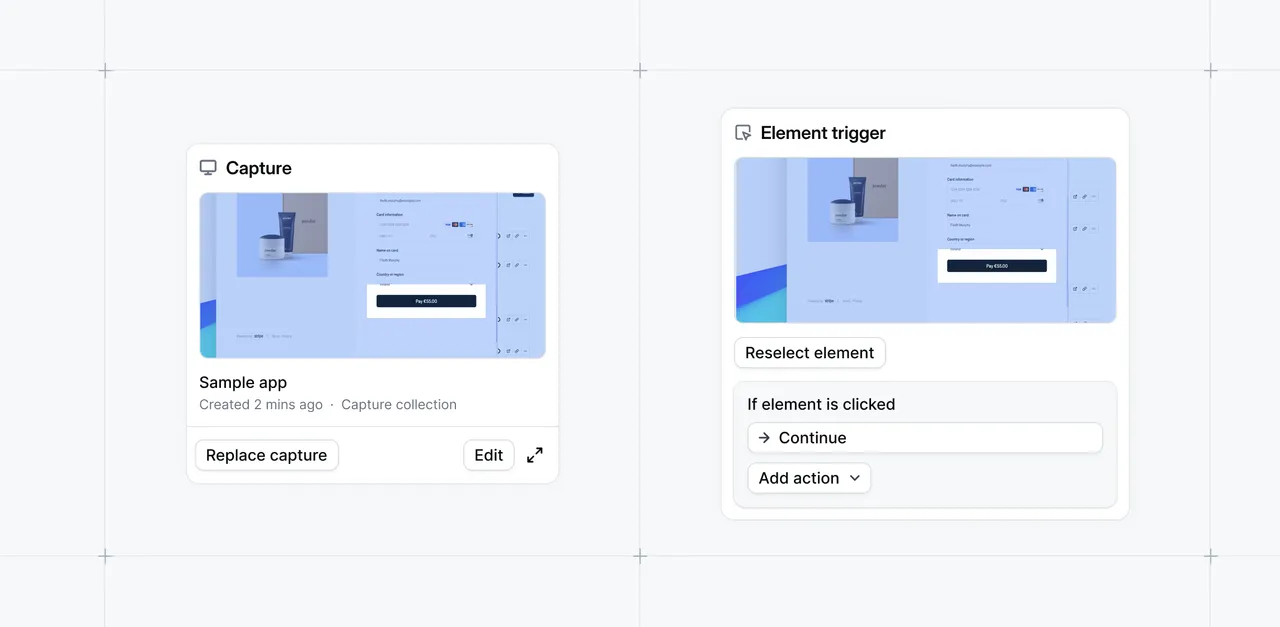
And Preserve Anchors keep tooltips, beacons, and triggers in the same place as you make updates.
This is helpful when you’re adding or replacing steps across multiple interactive demos.
Shawn Xiaoyang Hu at Cisco emphasizes, “Continuous application updates/changes cause challenges in content management. Navattic demo flows always deliver consistent experiences to our demo users because when the app is updated, we can easily update the flows/demos.”
Or, you could make UI updates even quicker with Copilot. Just write a prompt like, “Please update the navbar across every capture.”
3. Update a Table or Chart in a Few Steps
Numbers and text dashboards and charts go stale fast, and recapturing or editing them one by one is tedious.
As with any other update, you can ask Copilot something like:
“Please change all of the accounts in this table to companies in the network automation industry,” or “Please convert all dollar amounts from USD to EUR using today’s exchange rate.”
It will auto-apply those tweaks for you, dramatically cutting down the time it takes to refine and republish an existing demo.
As one G2 reviewer puts it, “Navattic’s AI Copilot has specifically cut down the time it takes to go from ‘we need a demo for this use case’ to something ready to share.”
4. Clean Up Messy Internal Environments
Sandboxes can contain unnecessary test data, old layouts, and half-built workflows. Instead of removing and editing elements one by one, you can do them in bulk with a few prompts.
Ask Copilot to:
- Blur out sensitive information (or replace it with something else).
- Crop out parts that aren’t relevant to the feature(s) you’re trying to show.
- Polish the UI by removing sections of content, adjusting colors, or replacing images.
And it will apply the fixes across your collection.
Per the team at Insider, “Building the demo experiences using Navattic’s simple-to-use platform was a frictionless and approachable experience. We did not need to involve a single engineering resource to design, build, or launch the interactive demo experiences.”
Our Capture Editor can make your demos as neat and curated as you want them to be.
Give it a try today or ask your CSM for a tailored walkthrough.
Turn demos into deals.
Build interactive product demos that engage buyers and close deals faster.